Friday, April 05, 2013
Friday, March 04, 2011
Wednesday, February 02, 2011
Wednesday, February 10, 2010
Wednesday, January 06, 2010
Thursday, October 22, 2009
Force Safari to open target links in new tab rather than window
ou can force Safari to open target = “_blank” links into new tabs rather than new windows by opening the Terminal and typing the following command:
defaults write com.apple.Safari TargetedClicksCreateTabs -bool true
Then restart Safari and from here on anytime you click a link targeted as _blank it will open in a new tab.
You can reverse this behavior and go back to the default new windows instead by typing:
defaults write com.apple.Safari TargetedClicksCreateTabs -bool false

Friday, October 09, 2009
Friday, October 02, 2009
Mac OS Quick Look-nal a "rontgenezes" be/ki kapcsolasa
Mac OS Enable native NTFS read/write support
- In Terminal, type diskutil info /Volumes/volume_name, where volume_name is the name of the NTFS volume. From the output, copy the Volume UUID value to the clipboard.
- Back up /etc/fstab if you have it; it shouldn't be there in a default install.
- Type sudo nano /etc/fstab.
- In the editor, type UUID=, then paste the UUID number you copied from the clipboard. Type a Space, then type none ntfs rw. The final line should look like this: UUID=123-456-789 none ntfs rw, where 123-456-789 is the UUID you copied in the first step.
- Repeat the above steps for any other NTFS drives/partitions you have.
- Save the file and quit nano (Control-X, Y, Enter), then restart your system.
Wednesday, September 30, 2009
Mac OS switch user
Sunday, September 27, 2009
Wednesday, August 12, 2009
Mac OS setfile utility
Make a file or folder invisible in Mac OS X Finder
setfile -a V testfile.txt
Poof! Like magic, the file or folder is no longer visible via the Finder GUI, but don’t worry your files are still there and you can find them via the command line and will show with an ls command. If you want to make your files and folders visible again, use this command:
Make a file folder visible again in Mac OS X Finder
setfile -a v testfile.txt
Monday, August 10, 2009
Mac OS Print Screen
Tovabba:
1: Create & Set a Designated Screen Shot Folder
defaults write com.apple.screencapture location ~/Pictures/Screenshots/killall SystemUIServer2: Change the Screen Shot Image File Format
defaults write com.apple.screencapture type jpgkillall SystemUIServer3: Take Impossible Screen Shots with a Timer
- From Grab, pull down the “Capture” menu and choose “Timed Screen”
screencapture -T 3 osxdaily.jpg4: Capture the Mouse Pointer or a Custom Cursor in Screen Captures
- In the Grab app, open “Preferences” and select the desired cursor type”
- Take a screen shot using Grab app to capture the mouse cursor
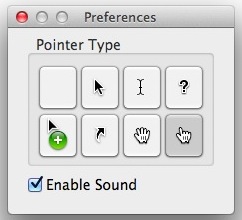
5: Move the Selection Area from the Original Position
- Hit Command+Shift+4 to draw the screen shot selection box as usual, then hit and hold Spacebar and click to drag the box

Thursday, February 26, 2009
Ha nincs Wi-Fi
http://forum.speedshop.hu/index.php?automodule=blog&blogid=3&&req=printentry&eid=21
Ha nincs a közelben (pl. munkahelyen) WiFi HotSpot, de van egy laptop vagy egy PC WiFi adapterrel, akkor ebből tudunk Wi-Fi hálózatot készíteni az iPhone-unknak.
Alábbiak szerint működik a dolog.
Windows Vista-n
- Ellenőrizd, hogy az internet működik–e?
- Lépj be ide: Vezérlőpult / Hálózat és megosztási központ (network and sharing center)
- Balra a feladatok menüben klikkelj az új kapcsolat létrehozására
- Itt válaszd ki a vezeték nélküli ad hoc hálózatot (wireless ad hoc network)
- Adj nevet a hálózatnak és egy WEP kódot, ha nem akarod mindenkivel megosztani
- Kattints a "kapcsold be az internet kapcsolat megosztását" opcióra és kész.
Mac-en
- Ellenőrizd, hogy az internet működik–e?
- Rendszer tulajdonságok (system preferences), kattints a megosztásra (sharing)
- felül kattints az Internet gombra a kívánt oldalhoz
- válaszd ki, hogy honnan szeretnéd használni, neked a beépített ethernet kell (Built in –Ethernet)
- lent a kis ablakban pedig az AirPort –ot válaszd
- az opciók alatt tudsz nevet és kódot adni a hálózatnak
- klikkelj a start-ra és készen is van
Widows XP-n
- Ellenőrizd hogy az internet működik –e?
- vezérlőpult / hálozati kapcsolatok
- jobb klikk a vezeték nélküli kapcsolatokra (wireless connections) és kattints a tulajdonságokra (properties)
- először a vezeték nélküli hálózatok alatt (wireless networks) jelöld be azt az ablakot, hogy: használd a windows-t, hogy konfigurálja a vezeték nélküli hálózati beállításokat.
(Use windows to configure my wireless network settings)
- lent a kedvelt hálózatokban (preffered) kattints a hozzáadásra (add)
- adj nevet a hotspot-nak, aztán válaszd ki a megosztott (shared), majd a WEP opciót. Adj neki egy kódot, majd kattints az OK-ra.
- most klikk a további lehetőségekre és jelöld ki, hogy: csak gépről-gépre (ad hoc) hálózatok (computer-computer (ad hoc) networks only)
- itt minden befejezve, kattints az OK-ra mindenhol
- most jobb klikk a helyi hálózati kapcsolatokra és klikk a tulajdonságokra (properties)
- a legtetején van egy speciális (advanced) lapfül
- internet kapcsolat megosztás (internet connection sharing)
- jelöld be az első beallítást, de vigyázz arra, hogy a második ne legyen bejelölve.
- OK mindenhol és kész is van
Előfordulhat hogy a BIOS-ban be van jelölve, hogy ne használjon WiFi-t, ha van aktív kábeles internet, akkor ezt ki kell kapcsolni, hogy működjön!
Tuesday, February 03, 2009
VIDEO_TS to iso to DVD on Mac OS
After searching the forums and trying various things, I still couldn't find a quick, reliable, free method of burning a VIDEO_TS folder to a pure UDF DVD, so that it would play in regular DVD players, as well trigger DVD Player to start up automatically. Anyway, as often is the case, Terminal had the answers. Just type in this command and change the paths to suit:
hdiutil makehybrid -udf -udf-volume-name DVD_NAME \
-o MY_DVD.iso /path/to/VIDEO_TS/parent/folderiso to DVD:
- Insert a blank disc.
- Start Disk Utility.
- From the File menu, choose Open Disk Image and select the ISO to be burned.
- In the list of volumes, you will now see an item representing the ISO file. Select it.
- Click the Burn button and follow the instructions.
Thursday, January 22, 2009
Avi file-ok osszecsatolasa